Uploading shipments to Click & Drop
Once you have created your shipping rules, to upload to Click & Drop:
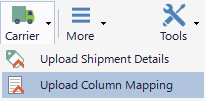
In Packing Partner's browser, navigate to Click & Drop Import Batch page and click Carrier>Upload Shipment Details on the browser toolbar.
Maximum field lengths
Please see here for the list of Click & Drop fields and their maximum lengths
Mapping Columns
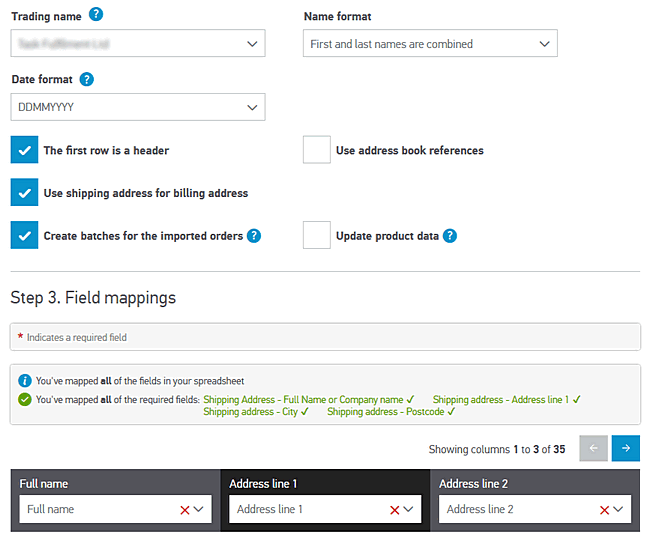
When you first upload to Click & Drop, you will need to map all 37 columns exported by Packing Partner, and change the Name format selection box to First and last names are combined. You only need to do this once, then Click & Drop will remember your settings.
Mapping for Click & Drop Desktop
If you are creating labels with Click & Drop Desktop please follow these steps:
In Packing Partner's browser navigate to Click & Drop's import page, and select Carrier>Upload Column Mapping
Once you've mapped the columns, click Import, which will cause an error, so just click Undo Import.
The header fields exported by Packing Partner match those on Click & Drop. Just match the drop-down for each column to the column name above it.
Label Format
In Click & Drop Settings>Label Format, you need to set the following options:
Separate label and despatch note
6x4
Do not generate despatch notes
Make sure all other options are not selected
Downloading Labels
To download labels, navigate to the Orders / Batch History page, select the batches to be downloaded and click Label Import on the toolbar. The labels will be downloaded and matched to the records in Packing Partner.
You can only download labels that have been paid for and have not yet been manifested.
Note
This only applies if you are using the web integration, the API integration automatically downloads and imports the labels
See also
Supported carriers - Carrier integration - Shipping rules