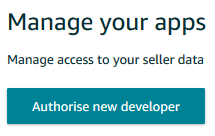
or go to https://sellercentral.amazon.co.uk/apps/manage and authorise Packing Partner as a developer.
Getting Amazon Credentials
To collect sales through Express Collect, you need to authorise Packing Partner to access your Amazon account. Please follow the steps below to give access to Packing Partner.
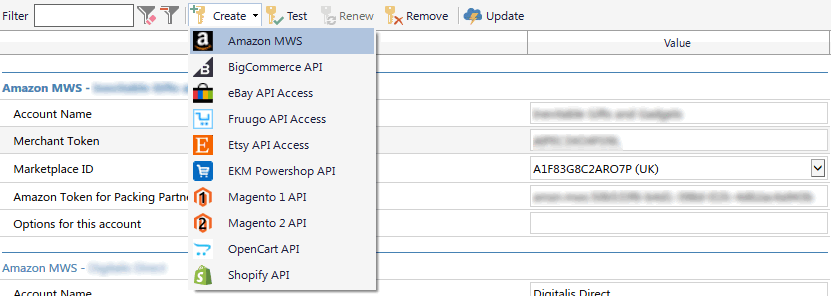
In Packing Partner, click Tools>Credentials and from the Toolbar click Create>Amazon MWS . You can now leave this window open while you navigate to your Amazon account to copy the credentials.
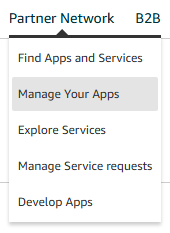
On the top Amazon Toolbar or Burger Menu click Partner Network>Manage Your Apps
or go to https://sellercentral.amazon.co.uk/apps/manage and authorise Packing Partner as a developer.
Enter the following information:
Developer's Name: Packing Partner , Developer ID: 4394-5102-3039
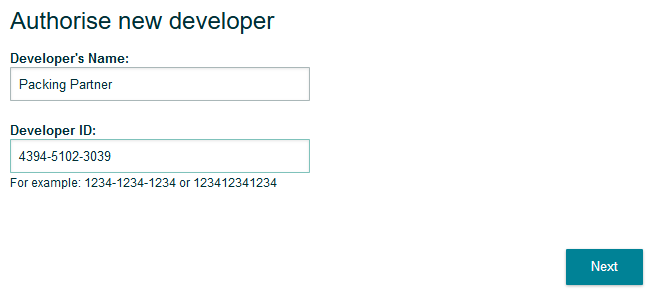
Click Next and agree to Amazon's MWS License Agreement. This explains that Packing Partner will be able to retrieve data from your account. Note that only information relevant to your orders will be retrieved.
Click Next again and you will be provided with the information required to be pasted into the new credentials entry you started in step 1. Copy the information carefully into the credentials window and then press Save.
A few points:
Copying: Make sure you don't have any additional spaces around the identifiers and that upper and lower case are correct and If there are any errors, check that each textbox is correct.
Account Name : The name of your store and is usually shown at the top of the screen in Seller Central. Be careful not to copy any additional spaces at the end of the name.
Merchant Token: is available here: https://sellercentral.amazon.co.uk/sw/AccountInfo/MerchantToken/step/MerchantToken
Additional product details from Amazon
Go to Tools>Options>Settings and filter for Amazon English
To collect one or more of the product details enter the names of the attributes separated by the | character (shift + the key next to it, on the keyboard).
Example:
Brand|Type|Release date
Any matching attributes on Amazon will be downloaded into Packing Partner and stored with the sale record. You print this information on your invoices / labels / delivery notes as below.
Printing the details
You can print the details by using the {Det} field from within an invoice or delivery note frame or {DetList} to print it in a normal frame.
See Also
Supported Channels - Supported Carriers