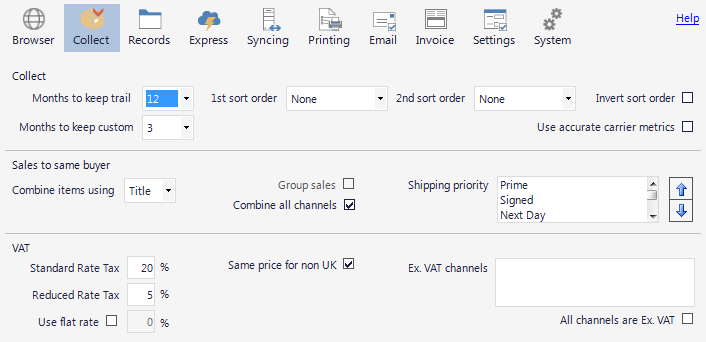
Collect Options
Collect options control the main options connected to collecting sales data, there are other less used options in the Settings Tab
Collect
Months to keep trail
Number of months to keep the coloured bar details for the records collected
1st, 2nd sort order
The order that all orders are sorted by when they are collected. All orders, including those already collected, are sorted by the chosen fields.
Sales to same buyer
These options control how sales and products to the same delivery address are combined.
Combine items using
The field used to determine when a product is the same. The safest option is to use Title.
If you sell the same product under a different listing title, you can use SKU, but the SKU must be available for collecting.
Group Sales
If Combine items is set to None, you have the option to group sales to the same buyer. So that they stay together in the records Tab.
Combine all channels
Allows you to combine sales across all your selling channels, e.g. sales from Amazon and your own web site will be combined if the delivery address is the same.
Shipping priority
When two sales are combined, this list determines which of the shipping methods takes priority.
By default the list is ordered to select the highest priority shipping, e.g. if one sale is 1st class and the other is 2nd, then the combined order will be first class.
Carrier
Determines the options for shipping when collecting.
Export to carrier on collect.
Applies the shipping rules to each record, then automatically creates any carrier output files.
Only export once
If records are recollected, then the carrier output will not be regenerated for that sale.
Shipping Rules button
Opens the Shipping Rules dialog to add or edit your shipping rules.
Note
This option will be overridden if you have chosen to import PDF labels, as the PDF import must use the RecordID.
VAT
Determines the VAT settings for a single country. If you need to setup multiple VAT countries, this must be done using scripting.
Standard Rate
The standard rate for the country where you are registered.
Reduced Rate
The reduced rate for the country where you are registered
Same price for non UK
If you sell including VAT, then you may want to keep the same total but set the VAT rate to zero. This is to save having to refund sellers who don't have to pay the VAT.
Use flat rate
If you are on the flat rate VAT scheme, then enter the percentage of VAT you pay.
Note
This value is only used to calculate the VAT for the VAT report in the Reports Tab.
Ex VAT channels
Lists any channels where prices are shown excluding VAT. Add one channel per line using the SellerID for that channel.
All Ex. VAT
All the channels that you collect from, show prices without VAT.