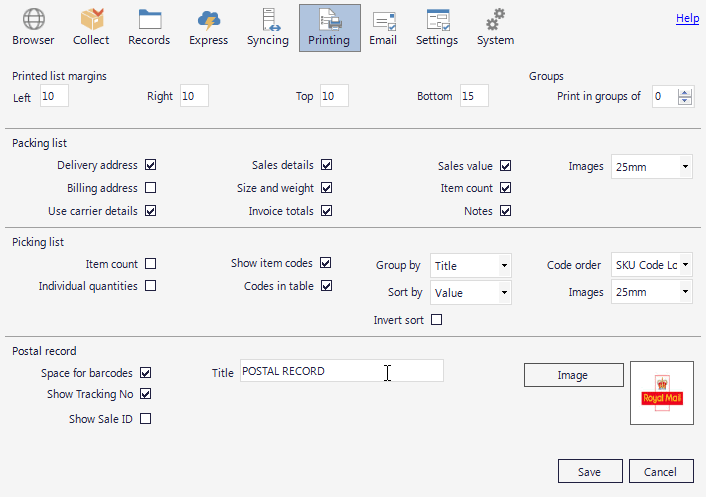
The printing options tab controls basic printing margins and what data is printed on lists.
List Margins - Groups
Left - Right - Top - Bottom
The margins for all the lists are shared and set from this section.
Groups the printing of packing list, invoices and labels, use 0 for no groups.
For example, this option will allow you top give a packing list and corresponding labels or invoices of 50 records to each packer.
It is also possible to print in groups using scripting. For example to if you need to group your printing by product location.
Packing list
Sales value
Prints the value of of all the sales at the bottom of the page, this can be useful to see what value of goods are being shipped.
Item count
Prints a count of the number of items at the bottom of the page, which can be useful to ensure the correct number of items have been packed.
Delivery address - Billing address
Prints the respective address on the left of each record row
Sales details
Prints sales details column that contains the Sales ID, shipping method, buyer details and shipping information.
Carriage
Prints the carriage under the product columns.
User carrier details
Prints the carrier details that have been created by the shipping rules, in the details column. Instead of the Shipping Method that was collected with the record.
Invoice totals
Shows the invoice totals under the product columns on the right of each record row.
Images
Determines the size of the images that are printed for each product. Select None if you don't need to print the images.
Notes
Prints the buyer and seller notes under the product columns.
Picking List
Group by
Determines how products are grouped. Unless all your products have a SKU or code, you should use Title for this option.
Sort by
Determines how the Packing List is sorted. The option you choose will depend on how your warehousing is organised and how you process your orders.
Code order
If you have the option selected to Show item codes, you can choose the order they are shown, under the product title.
Images
Selects the size of the image to print. Select None for no image.
Item Count
An item count can be shown at the bottom of the page. This can help with ensuring that you pick the correct number of products.
Show item codes
Item codes are the SKU, Code and Location for each product. If checked the item codes will be printed under the product title.
Individual quantities
Tick this option if you sell products where you need to know the individual quantities for each order. eg. lengths of cloth.
Codes in table
The codes under the product title can be printed as plain text or in a table, this option is just so you can choose the one that suits you.
Postal Record
Space for barcodes
Leaves a space on the postal record for you to attach the RM peel off barcode
Show tracking ID
If you have imported or scanned your tracking ID, it can be printed on the Postal Record
Show sale ID
Prints the record Sale ID on the record
Title
The title that is printed on the top of each page
Image
The image that is printed on the top of each page