Records Tab
Records collected from the sales channel are displayed in this tab. From here, you can control all your order processing and printing.
There are two databases, the recent database contains all records currently being processed, the archive database contains all records, including any collected on other PCs that are synced.
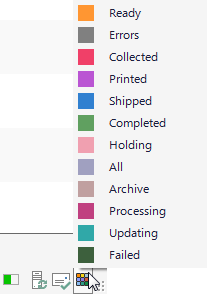
The status of the record is shown by a coloured border around its checkbox. In the Browser Tab , the checkboxes for the sales channel where the record was collected, are also bordered with the status colour.
The colour legend can be seen by clicking the button on the right of the status bar. Hovering over the bordered checkbox in the browser, displays a tooltip with the details of the current status of the sale.
When records are collected, sales to the same buyer can be combined into a single record. This is to save time and shipping costs.
Only unprinted records can be combined. Before being marked as printed, two or more orders to the same buyer can be combined, even if they are collected at different times. Once printed, orders will not be combined with any new records.
Note
Combining orders is an option in Tools>Options>Collect. In the archive database, the individual sales are saved, they are not combined.
Select the current view using the drop-down menu under the main toolbar. The numbers on each menu item show the how many combined records are in each view. The number in brackets is the total number of un-combined records.
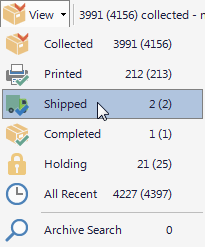
Collected
Shows the records that have been collected from the sales channel, but not yet printed
Printed
Once the record label or invoice has been printed, they move to the printed view.
Shipped
When you have the record ready for shipping, they should be marked as shipped
Updated
View records whose selling channel has been updated, with the status and carrier, and tracking ID if there is one.
Holding
This view shows records that are on hold. When a record cannot be fulfilled, it can be put on hold, for example if products are out of stock.
Records on hold maintain their current status, but are moved to holding to prevent them from being processed with other records. The status borders in the records tab and sales channel show a lighter colour for records on hold .
All Recent
Shows all the records that are in the recent database, whatever their status.
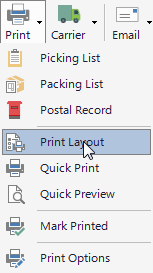
The Picking List shows all the products that are needed to fulfil your orders, products can be grouped and sorted in an order that suits your picking.
The Packing List shows all the orders that need to be fulfilled in a list form that shows the delivery address and products to be packed.
The list shows a manifest for all the parcels that you have fulfilled. It's main use is for stamping and signing at the Post Office as proof of postage .
Note
The Picking list, Packing list and Postal record have options available from Tools>Options>Printing.
Mark Printed
Marks records as having been printed, this option is show automatically after printing the records
Print Options
Shows the print options dialog, also available from Tools>Options>Printing
The shipping menu is generally used after the print menu to create exports for and amend carrier details.
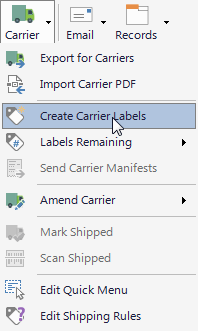
Exports files for the carriers that have been set up in shipping rules. When a carrier file is first exported, you will be asked for a folder to save the files into. The folder where the files are saved, can be changed from Tools>Options>Settings> Carrier Name .
Most carriers produce their labels using a PDF file. This PDF file can be imported into Packing Partner, so the label can be printed on your own label or invoice.
Create carrier labels on demand. Carrier labels can be created for most UK and international carriers. To use this service, you need to have an account with the carrier and it does require some setting up.
Labels Remaining
Where carrier labels require pre-defined tracking numbers, this menu shows how many labels are remaining. This currently only applies to UK Mail labels.
Send Carrier Manifests
Send shipping manifest to a carrier. This currently only applies to UK Mail labels.
Amend Carrier
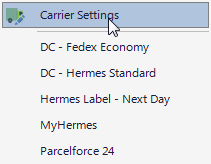
Amends the carrier details for the current or selected records. You can either opn the Carrier Settings dialog to change any setting, or choose one from the user defined quick menu.
Mark Shipped
Changes the status of the selected or filtered records to shipped.
Scan Shipped
Allows you to mark each record as shipped by scanning a barcode and optional tracking ID printed on the shipping label. This reduces errors made during packing and preparation for shipping.
Edit Quick Menu
Opens the Carrier settings dialog, so that you can define the items that are shown in the Amend Carrier Quick menu.
Edit Shipping Rules
The shipping rules determine which carrier and service are used for each record. This can simply be used to print the actual carrier on the label or invoice or to provide an export file that can be uploaded to a carrier to print their own labels.
Email Menu
Gives access to Packing Partner's email sending options. Emails can be sent manually or setup to be sent when the status odd a record changes, or after a defined time in the future.
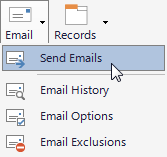
Send Emails
Manually queue emails to be sent to the current or selected records.
Email History
Opens a dialog where you can view the email sending history.
Email Options
Opens the Options Dialog at the Email settings tab.
Email exclusions
Opens a text editor where you can enter excluded email addresses. These must be a full email address, that cannot contain wildcards.
The Records menu is used to import, export and generally process records
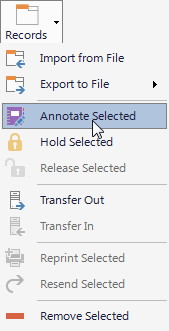
Import from File
Imports records from a CSV or XML file. This is usually to process sales from a channel that is not supported by Packing Partner.
Importing is controlled by a template file that can be edited from Tools>Options>Records>Resource Templates.
More information on importing records.
Export to File
Allows you to export records in CSV or XML format, for importing into other software such as accounts or stock control.
Exporting is controlled by a template file that can be edited from Tools>Options>Records>Resource Templates
More information on exporting records.
Annotate Selected
Create a note for the selected record. If you using the sync feature, the notes are saved with the record across all PCs that are synced.
Hold Selected
Marks the selected records as holding, and moves them to the holding view.
When a record cannot be fulfilled, it can be put on hold. For example if products are out of stock.
Records on hold maintain their current status, but are moved to holding to prevent them from being processed with other records. The status borders in the records tab and sales channel show a lighter colour for records on hold .
Release Selected
Release the selected records from the holding view and returns them to the main processing view that they came from.
Transfer Out
Selected records can be transferred to another PC for processing. This can be useful if you have a central location for packing, but need to collect records from another PC.
The records to be transferred use the Sync system, so you must have that setup before you can transfer records. This also means that they can be transferred between PCs on a local network or different location using a FTP or a cloud drive.
The records are removed from the current database on the PC, but not from the archive. This is so that the records cannot accidentally be processed on two different PCs.
Transfer In
When records are ready to be transferred to this PC, the notification icon(bell below the Tools Menu)will flash and the notification pane will open with an option to transfer the records into this PC.
Reprint Selected
Changes the status of the records to allow them to be reprinted, this does not increase the resend count or change any carrier details.
Resend Selected
Changes the status of the records to allow them to be resent, this increases the resend count, applies shipping rules, and clears any carrier details including label and tracking Id.
Remove Selected
When you remove records, there is an option to also remove from the archive database. If you are removing records that have been cancelled it is best to tick this checkbox so that they are removed from the entire system.